
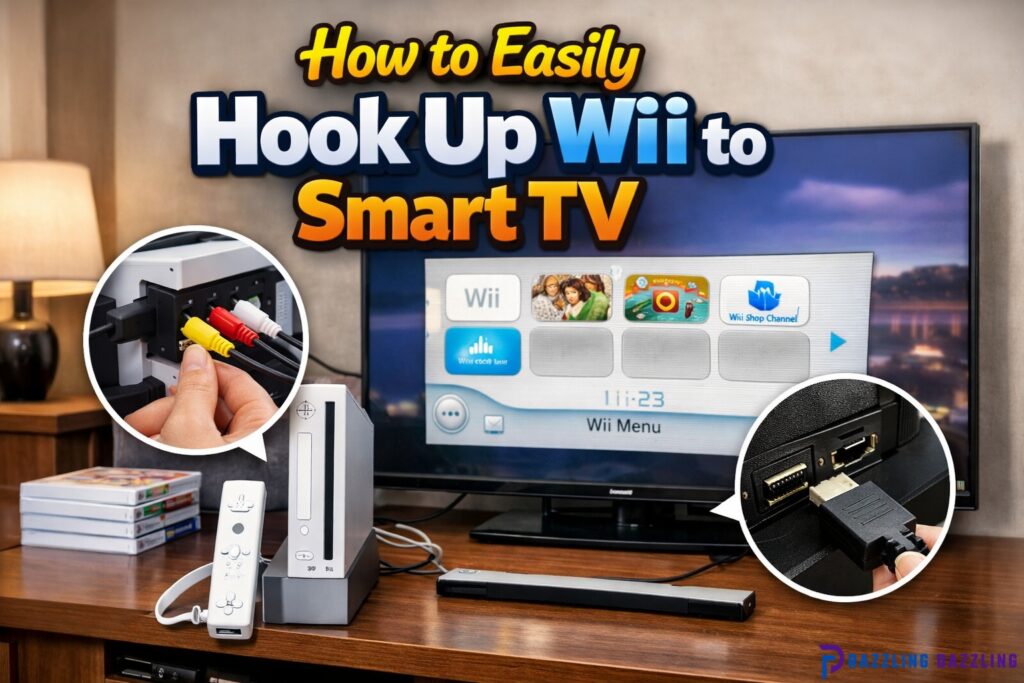
The Nintendo Wii remains one of the most beloved gaming consoles, thanks to its motion controls, fun family games, and iconic titles like Wii Sports and Super Mario Galaxy. Even in the age of PlayStation 5 and Xbox Series X, many gamers still want to enjoy the nostalgic charm of the Wii. But if you have a modern Smart TV, connecting your Wii can feel tricky because older consoles often use outdated cables.
The good news is: hooking up your Wii to a Smart TV is simple, and this guide from Razzling Dazzling will walk you through all the steps—from understanding the types of cables to troubleshooting common issues—so you can start playing in no time.
Understanding Wii Video Outputs
Before connecting your Wii to a Smart TV, it’s important to understand the type of video output it uses. The Wii primarily supports two connection methods:
Composite Video (Standard AV Cable)
The most common method is the composite AV cable, which comes in three colors:
- Yellow: Video
- Red: Right audio
- White: Left audio
This is the standard Wii cable that was included in the original packaging. It’s compatible with nearly all TVs that have AV input ports.
Component Video (Enhanced Cables)
For a slightly better picture, some users choose component cables, which split the video signal into three parts:
- Green (Y): Luminance
- Blue (Pb): Blue color difference
- Red (Pr): Red color difference
- Red and White: Audio channels
Component cables provide higher resolution (up to 480p) compared to composite cables, but not all Smart TVs have component inputs.
HDMI Adapters
Since many modern Smart TVs lack AV or component ports, you may need an HDMI adapter for Wii. This device converts the Wii’s analog signal to HDMI, allowing it to connect to any HDMI-enabled TV. HDMI adapters are widely available online and are typically plug-and-play.
Step-by-Step Guide: Connecting Wii to Smart TV
Here’s a complete guide to get your Wii up and running on your Smart TV, regardless of the type of connection.
Method 1: Using Composite AV Cables
Locate the AV Input on Your TV: Look for the ports labeled AV IN or Video on the back or side of your Smart TV. They should have three corresponding colors: yellow, red, and white.
Connect the Wii AV Cable
- Insert the yellow video plug into the yellow port on your TV.
- Connect the red and white audio plugs into the matching red and white ports.
Power Up: Plug in your Wii power adapter and turn on both your Wii and TV.
Select the Correct Input Source: Using your TV remote, navigate to the Input or Source menu and select the AV port you used. On some TVs, it may be labeled Video 1 or AV1.
Test the Connection: You should now see the Wii menu on your Smart TV. If the picture is black or distorted, check that the cables are properly plugged in.
Method 2: Using Component Cables
Check for Component Input on Your TV: Look for the five ports: green, blue, red (video) and red, white (audio).
Connect the Wii Component Cable: Match each plug to the corresponding port on your TV. Make sure they are firmly inserted.
Switch Wii Display Settings: Turn on your Wii and navigate to Wii Options → Settings → Screen. Select 480p resolution for component cables.
Select the Component Input on Your TV: Use your TV remote to select the correct input channel, usually labeled Component.
Confirm Video and Audio: If the display looks correct, you’re all set. Component cables give better color and sharper images than standard AV.
Method 3: Using an HDMI Adapter
Purchase a Wii to HDMI Adapter: These adapters are inexpensive and convert your Wii’s output to HDMI. Look for one with good reviews to ensure quality.
Connect the Adapter
- Plug the Wii AV cables into the adapter.
- Connect the HDMI cable from the adapter to your TV.
Power Up the Wii: Some HDMI adapters require USB power. Connect the USB cable to a USB port on your TV or a USB power adapter.
Select the HDMI Input: Switch your TV to the HDMI channel where the adapter is connected.
Enjoy Enhanced Compatibility: HDMI adapters simplify the connection and often improve video stability on newer Smart TVs.
Adjusting TV Settings for Best Performance
Once your Wii is connected, optimizing your TV settings can improve your gaming experience:
- Picture Mode: Set your TV to Game Mode if available to reduce input lag.
- Resolution: Ensure your Wii settings match your TV (480p or 480i).
- Aspect Ratio: Choose 4:3 or 16:9 based on your preference. Most Wii games are designed for 4:3.
- Sound: If your TV has audio settings, adjust the balance and volume for the best experience.
Common Issues and Troubleshooting
Even with a clear connection, sometimes the Wii may not display correctly on a Smart TV. Here’s how to solve common problems:
No Signal
- Check that all cables are firmly connected.
- Ensure the TV is set to the correct input source.
- Test the AV cables on another device to rule out faulty cables.
Black and White or Distorted Colors
- Composite cables: Make sure yellow, red, and white plugs are in the correct ports.
- Component cables: Verify green, blue, and red video plugs are correctly connected.
Wii Menu Does Not Display
- Ensure the Wii power adapter is plugged in.
- Reset the Wii console by unplugging it for a few seconds.
- Try switching to a different input port on the TV.
HDMI Adapter Not Working
- Make sure the HDMI adapter is powered (via USB if required).
- Try a different HDMI port.
- Some adapters work better at 720p mode; check compatibility with your TV.
Extra Tips for a Smooth Wii Experience on Smart TV
Keep Cables Organized: Use cable ties or clips to prevent tangling, especially with multiple devices connected to your TV.
Use a Wii Sensor Bar Correctly: Place the sensor bar above or below your TV screen. Ensure it’s aligned with the Wii Remote for accurate motion tracking.
Avoid Signal Interference: Keep the Wii and sensor bar away from devices like microwaves, Wi-Fi routers, and cordless phones that may cause interference.
Upgrade Audio: For better sound, consider connecting the Wii to an external speaker system via the TV.
Regular Maintenance: Clean the Wii console, discs, and sensor bar to avoid connection and reading issues.
Advantages of Connecting Wii to Smart TV
Hooking up your Wii to a Smart TV provides several benefits:
- Better Visuals: Even without HD, Smart TVs enhance color and contrast for Wii games.
- Larger Screen: Enjoy family games on a bigger screen for a more immersive experience.
- Simpler Connectivity: HDMI adapters allow seamless connection to modern TVs.
- Multi-Device Setup: You can easily switch between Wii and other consoles or streaming apps.
Wii Accessories That Improve TV Experience
- Wii MotionPlus: Enhances controller precision.
- Classic Controller: Perfect for older-style games.
- Wii Wheel: Great for racing games like Mario Kart Wii.
- Rechargeable Battery Packs: Avoid frequent AA battery changes for Wii remotes.
- HDMI Adapter with Audio Output: Connects external speakers or soundbars.
FAQs About Connecting Wii to Smart TV
Can I connect my Wii to a 4K Smart TV?
Yes! Although the Wii only outputs 480p, it can be displayed on 4K TVs using HDMI adapters or AV/component cables. The TV will upscale the resolution.
Do I need a special adapter for modern TVs?
If your Smart TV lacks AV or component inputs, a Wii-to-HDMI adapter is recommended for a smooth connection.
Can I use multiple Wii consoles on the same TV?
Yes, but you’ll need to switch input cables or HDMI ports for each console.
Why is my Wii not showing on my Smart TV?
Check cable connections, TV input source, and power supply. If using an HDMI adapter, ensure it is powered.
Does using component cables improve graphics?
Yes, component cables provide slightly sharper and more vibrant video compared to standard composite AV cables, but the difference is subtle since Wii games are limited to 480p.
Final Tips
Connecting a Wii to a Smart TV doesn’t have to be complicated. Whether you use composite AV cables, component cables, or an HDMI adapter, following the steps outlined by Razzling Dazzling will have you gaming in no time. By optimizing your TV settings, placing the sensor bar correctly, and troubleshooting common issues, you can enjoy the timeless fun of Wii games with better visuals and sound on your modern Smart TV.
So dust off your Wii console, grab your Wii Remotes, and bring back the nostalgia of interactive gaming right in your living room!